The Ultimate Guide to WordPress Site
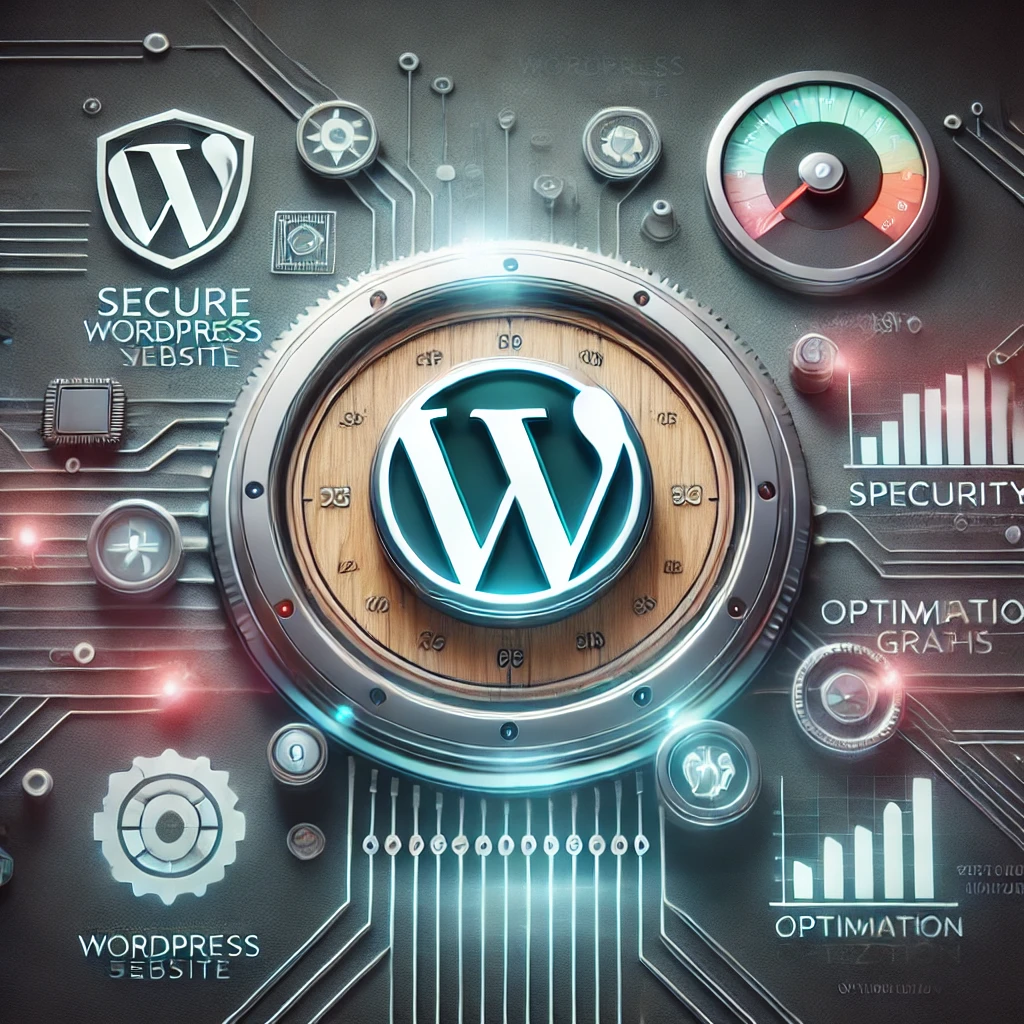
The Ultimate Guide to WordPress Site Maintenance, Security, and Optimization
WordPress powers over 40% of the internet, making it one of the most popular content management systems. However, maintaining a WordPress site requires continuous effort to ensure security, performance, and functionality. In this guide, we’ll cover essential maintenance tips, security practices, powerful features, common issues, and their solutions to help you keep your WordPress site in top shape.
1. Essential WordPress Site Maintenance
Regular maintenance ensures your WordPress site runs smoothly and prevents future issues. Here are the key steps:
1.1 Regular Backups
- Use plugins like UpdraftPlus, Jetpack, or BackupBuddy to automate backups.
- Store backups offsite (Google Drive, Dropbox, or an external server).
- Perform both database and full-site backups.
1.2 Update Core, Themes, and Plugins
- Always keep WordPress core, themes, and plugins updated to the latest versions.
- Remove unused or outdated plugins/themes to reduce vulnerabilities.
- Enable auto-updates for trusted plugins but manually check major updates for compatibility.
1.3 Database Optimization
- Use plugins like WP-Optimize to clean unnecessary database entries.
- Delete spam comments, old revisions, and transient options to improve performance.
- Schedule automatic database optimization at least once a month.
1.4 Broken Links and 404 Errors
- Use tools like Broken Link Checker or Google Search Console to identify broken links.
- Redirect 404 errors using Redirection plugins.
2. Strengthening WordPress Security
WordPress security is crucial to prevent hacking attempts, malware infections, and data breaches.
2.1 Secure Login Practices
- Change the default login URL (https://webtirety.com/dispatch/e.g., /wp-admin to /custom-login-url).
- Enforce strong passwords and use a password manager.
- Enable two-factor authentication (2FA) with plugins like Google Authenticator.
2.2 Limit Login Attempts
- Use plugins like Limit Login Attempts Reloaded to block repeated failed logins.
- Consider IP whitelisting for admin access.
2.3 Implement a Web Application Firewall (WAF)
- Use services like Cloudflare, Sucuri, or Wordfence to add an extra security layer.
- Block suspicious traffic and bot attacks before they reach your site.
2.4 Disable XML-RPC if Not Needed
- XML-RPC can be an entry point for brute-force attacks. Disable it using security plugins or manually via
.htaccess.
2.5 Regular Malware Scans
- Use security plugins like Wordfence, iThemes Security, or Sucuri to run malware scans.
- Set up automatic security audits and notifications.
3. Optimizing WordPress for Power and Performance
A slow site can lead to poor user experience and lower search rankings. Here’s how to boost performance:
3.1 Caching for Speed Optimization
- Use caching plugins like WP Rocket, W3 Total Cache, or LiteSpeed Cache.
- Enable browser caching, object caching, and GZIP compression.
3.2 Image and Media Optimization
- Compress images using Smush or ShortPixel.
- Use modern formats like WebP for faster loading times.
- Implement lazy loading for images and videos.
3.3 Minify CSS, JavaScript, and HTML
- Use plugins like Autoptimize or Asset CleanUp to reduce unnecessary code.
- Remove unused scripts and styles that slow down your site.
3.4 Use a Content Delivery Network (CDN)
- A CDN like Cloudflare or BunnyCDN speeds up your site by serving content from multiple global locations.
3.5 Optimize Hosting and Server Performance
- Choose a reliable WordPress hosting provider (e.g., SiteGround, Kinsta, Cloudways or Webtirety Hosting).
- Upgrade to a VPS or dedicated server for better scalability.
- Ensure your PHP version is updated (PHP 8.x recommended).
4. Common WordPress Issues and Solutions
4.1 White Screen of Death (WSOD)
Solution:
- Disable plugins one by one via FTP to find the culprit.
- Switch to a default theme to check if the theme is causing the issue.
- Increase PHP memory limit in
wp-config.php.
4.2 Error Establishing a Database Connection
Solution:
- Verify database credentials in
wp-config.php. - Repair the database using
wp db repairin WP-CLI. - Check if the MySQL server is running properly.
4.3 Slow Website Performance
Solution:
- Optimize images and enable caching.
- Reduce external scripts and plugins that slow down the site.
- Use a lightweight theme optimized for speed.
4.4 WordPress Login Issues
Solution:
- Reset the password via phpMyAdmin.
- Disable conflicting security plugins temporarily.
- Ensure correct site URL settings in
wp-config.php.
4.5 500 Internal Server Error
Solution:
- Check the
.htaccessfile and rename it to regenerate a new one. - Increase PHP memory limit.
- Enable debug mode to find the exact issue.
Final Thoughts
Maintaining a WordPress site requires a proactive approach to security, optimization, and regular updates. By following these best practices, you can ensure that your site remains secure, fast, and fully functional. Keep backups, monitor performance, and stay updated to make the most out of your WordPress experience!
Explore How a website can Boost any Business, and Excellent Custom Web development services from Webtirety software.
Do you have any WordPress maintenance tips or tricks? Share them in the comments below!


I’m Manas Ranjan Sahoo: Developer/Founder of “Webtirety Software”. I’m a Full-time Software Professional and committed to expanding Webtirety Software into a thriving platform that empowers businesses and individuals alike. I love to Write Blogs on Software, Technology, eCommerce, SEO, and Digital Marketing.